
How to Change Brightness on Your Android Phone Quickly

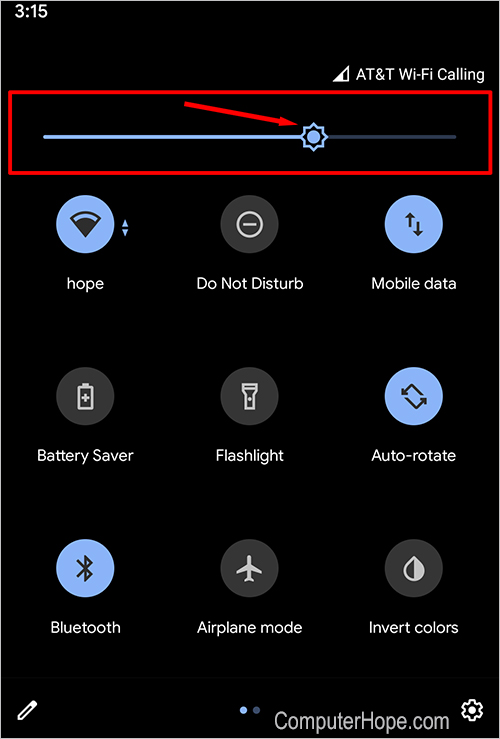
Adjusting brightness on your Android phone is pretty crucial for both comfort and usability, helping reduce eye strain or even save battery. The quickest method to change brightness is via the Quick Settings menu. Just swipe down from the top of your screen, and then swipe down again to access more options.
Look for the brightness slider, usually marked with a sun icon; simply drag it left or right to adjust. If you don’t see that slider, you can tap the pencil icon to add it. For more detailed settings, dive into your Display settings in the main Settings app for further adjustments!
1. Adjusting Brightness from Quick Settings
The fastest way to change brightness on your Android phone is through the Quick Settings menu. Follow these steps:
Swipe Down: Start by swiping down from the top of your screen. This will reveal the notification panel.
Open Quick Settings: Swipe down again to expand the Quick Settings menu. Depending on your device, you may only need to swipe down once.
Adjust the Slider: Look for the brightness slider, which is typically represented by a sun icon. Drag the slider left or right to decrease or increase the brightness, respectively.
Note:
If you don’t see the brightness slider, you might need to edit your Quick Settings. Tap on the pencil icon (or three dots) to access the editing options and add the brightness slider.
2. Changing Brightness Through Settings
Credits: computerhope.com
To change the brightness through the Settings menu, start by opening the Settings app on your Android phone. Scroll down and select "Display". In this section, you will find a slider to manually adjust the brightness level. Simply drag the slider left to decrease the brightness or right to increase it.
If the adaptive brightness feature is on and you want more control, you can disable it here as well. Just toggle off the "Adaptive brightness" option, which allows you to set a fixed brightness level that won't change automatically based on the surrounding light.
3. Making the Screen Extra Dim

Credits: youtube.com
For those moments when you need your screen to be very dim, especially at night or in dark environments, you can enable the "Extra dim" feature. This feature helps reduce eye strain by lowering the brightness beyond the usual minimum settings.
To access the Extra dim feature, start by swiping down twice from the top of your screen to open the Quick Settings menu. If you don’t see the Extra dim option, tap the pencil icon to edit your Quick Settings and add it. Once it’s available, you can simply tap on it to activate the extra dim mode.
For more customization, you can also enable the Extra dim feature from your device’s Accessibility settings. Open the Settings app, go to Accessibility, and select Vision enhancements (on devices like Samsung) or Extra dim (on other Android models). Here, you can adjust the intensity slider to choose just how dim you want your screen to be, allowing for a more comfortable viewing experience in low-light conditions.
4. Using Night Light
Credits: geeksforgeeks.org
Using the Night Light feature on your Android phone can greatly enhance your viewing experience, especially in low-light conditions. To enable Night Light, start by opening the Settings app and navigating to the Display settings. Here, you will find the Night Light option. Turn it on, and you'll see a slider that allows you to adjust the color temperature. A warmer tone can help reduce blue light exposure, making it easier on your eyes at night.
Additionally, you can schedule Night Light to turn on automatically during specific hours, such as from sunset to sunrise, so you don't have to remember to activate it each time. This feature is particularly useful for late-night reading or browsing, as it minimizes the harshness of bright screens, helping you maintain a more comfortable environment.

5. Tips for Optimal Brightness Adjustment
Consider ambient light when adjusting your screen brightness. For example, if you're in a dim room, lowering the brightness can reduce eye strain. Conversely, if you're outside on a sunny day, increasing the brightness will help you see your screen better. Remember that high brightness levels can drain your battery faster.
You might want to use adaptive brightness to automatically adjust based on your surroundings, which can be a great way to save battery life. If you're using extra dim settings, opt for high-contrast wallpapers. This will make app icons and text easier to read, even when the screen is dim. Lastly, it's also helpful to take breaks from screen time to rest your eyes, especially if you're using your phone for extended periods.
Adjust brightness based on surroundings.
Use adaptive brightness settings.
Avoid extreme brightness levels.
Manually tweak brightness in different lighting.
Enable night mode to reduce eye strain.
Schedule brightness changes for different times of the day.
Use screen filters for added comfort.
Frequently Asked Questions
1. How can I quickly adjust the brightness on my Android phone?
You can quickly adjust the brightness by swiping down from the top of the screen to open the notification panel. There, you'll find the brightness slider to change it.
2. Is there a way to set my brightness automatically on Android?
Yes, you can enable Adaptive Brightness in the settings. This will automatically adjust the brightness based on the surrounding light.
3. What if my brightness slider is missing from the notification panel?
If the brightness slider is not visible, you may need to edit the quick settings. Swipe down, tap on the pencil or edit icon, and drag the brightness slider back to the panel.
4. Can I set different brightness levels for different apps?
Most Android phones don't allow this by default, but some third-party apps can help you manage brightness levels for specific apps.
5. Why does my screen brightness keep changing on its own?
This could be due to Adaptive Brightness being enabled. Your phone adjusts brightness based on the environment to improve visibility.
Conclusion:
Adjusting brightness on your Android phone is simple and can significantly improve comfort and usability. Whether you need to quickly tweak the brightness via the Quick Settings menu, fine-tune it in the Display settings, or enable features like Extra Dim or Night Light, there are options to suit every situation. For convenience, the brightness slider in the Quick Settings is the fastest method, while Display settings allow more detailed adjustments, including disabling Adaptive Brightness for consistent control.
Features like Night Light and Extra Dim can make nighttime or low-light use more comfortable, reducing eye strain and improving screen visibility. Remember to consider your environment when adjusting brightness and use features like Adaptive Brightness to balance convenience with battery life.
By understanding these options and tips, you can customize your phone’s brightness settings to create a better, more comfortable viewing experience while optimizing performance and battery usage.

Viola R. Daigle
I'm Viola R. Daigle, a dedicated Internet Marketer. I work with WarriorPlus as a Vendor and Affiliate, and I’m also an Affiliate on JVZoo and Legendary Marketer. My passion is to provide honest and detailed reviews of Internet Marketing (IM) products and software. I love helping people choose the right tools and strategies to grow their online business with confidence.