
How to Change Phone Language in Android?

Changing the language on your Android phone is pretty simple and can be helpful if you’re learning something new or moving countries. First, you’ll need to open the Settings app by swiping down from the top of your screen and tapping the gear icon. Next, scroll down to find System (or it might say General Management). Then, go to Languages & input, and tap on Languages. From there, select “Add a language,” find your desired one in the list, and set it as default by dragging it to the top. Sometimes, restarting your device helps save changes. If you just want an app in another language instead of whole system change, pick that specific app under settings.
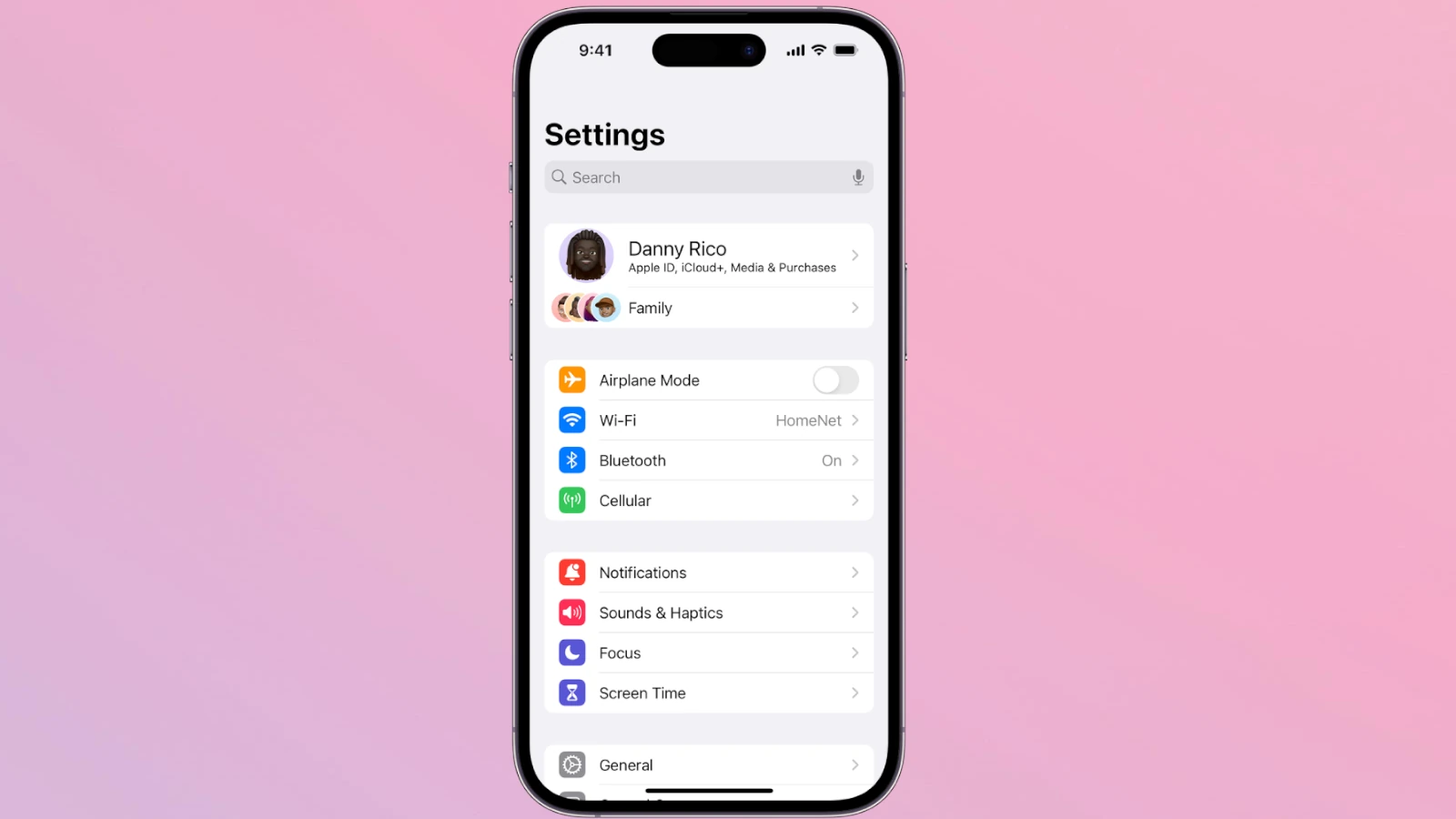
Step 1: Open the Settings App
Credits: simplymac.com
To begin changing the language on your Android device, first, you need to access the Settings app. You can do this by swiping down from the top of your screen to open the notification shade. Look for the gear-shaped icon, which represents the Settings app, and tap on it. This will take you to the main settings menu where you can make various adjustments to your device.
Step 2: Navigate to System Settings

Credits: youtube.com
To change the language on your Android device, start by navigating to the System settings. Scroll down the Settings menu until you find the option labeled System. On some devices, you might see it referred to as General Management instead. Once you select this option, you will be presented with various settings related to your device's system functions. Finding the right setting is crucial, as this is where you will access all language-related options. The System settings are generally easy to locate, but the exact naming may vary based on the manufacturer and Android version.
Step 3: Access Language Settings
To change the language on your Android device, you need to access the language settings. First, look for the option labeled Languages & input within the system settings. This is typically found by scrolling down in the System section. Once you've tapped on Languages & input, you will see Languages at the top of the screen. Selecting this will take you to the list of languages currently set on your device. Here, you can review your existing language settings and make changes as necessary.
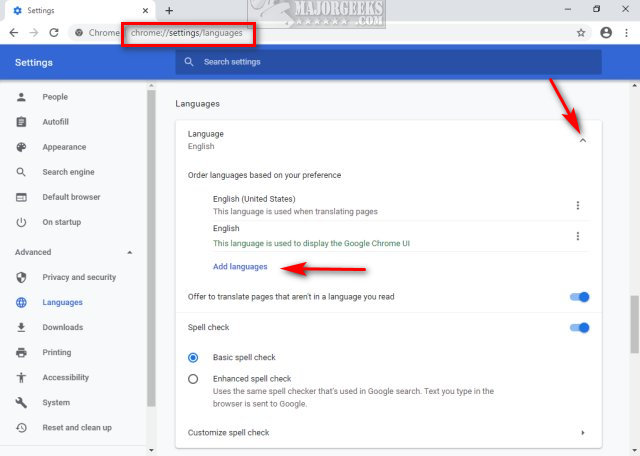
Step 4: Add a New Language
Credits: m.majorgeeks.com
To add a new language, start by tapping on Add a language. This will open a list of all the languages available for your device. You can scroll through this list or use the search bar to quickly find the language you want to add. Once you locate your desired language, simply tap on it to select it. In some cases, you may also need to specify the region associated with that language, such as choosing between American English and British English. After making your selection, the new language will be added to your list of languages.
Step 5: Set the Language as Default
After you have added the new language, it's essential to set it as the default for your device. If prompted, select the appropriate region for the language. To make the new language your default, simply press and hold the language in the list and drag it to the top position. In some cases, you might see an option to set it as default directly. This action ensures that your phone's menus and settings display in the selected language, allowing you to navigate your device more easily.
Step 6: Restart Your Device (if necessary)
After you've set your new language, you might notice that some changes take effect immediately, while others may require a restart. If the language doesn't seem to change or you experience any glitches, restarting your device is a simple yet effective solution.
To restart, press and hold the power button until you see the option to power off or restart. Select 'Restart' and wait for your device to fully reboot. This can help refresh the system and ensure that your language settings are applied correctly. In some cases, especially with older Android versions, a restart is essential for the new settings to take effect.
Changing Language for Specific Apps
If you only want to change the language for specific apps, you can easily do so without affecting the overall language settings of your device. This is particularly useful if you are using apps that support multiple languages. To change the language for a particular app, open your Settings and navigate to System > Languages & input > App Languages. From there, you will see a list of apps installed on your device. Select the app you wish to change the language for and choose the desired language from the options provided.
For example, if you want to use Facebook in Spanish while keeping the rest of your phone in English, simply find Facebook in the list and select Spanish as the app language. After making your selection, close the settings, and open the app to see the changes take effect.
Troubleshooting Common Issues
If the language doesn’t change after you’ve selected it, try restarting your device or the app. Sometimes, simply toggling the language off and on can also help.
For specific apps that don’t seem to reflect the new language, check if they support multiple languages. Some apps might not have the language you want, or they might require an update to enable it.
If an app is stuck in a different language, you can clear its data. Go to the app settings, find the app in question, and select the option to clear data or cache. This often resolves any lingering issues.
In cases where the language settings are not saving, make sure your device is updated to the latest version of Android. Updates can fix bugs that might affect language settings. If problems persist, consider reaching out to the app developer or checking online forums for additional support.
Ensure your device is updated to the latest version of Android.
Check if the selected language is supported by your device.
Restart your phone to apply language changes if not reflected.
Verify that the app you are using supports multiple languages.
Review app-specific language settings for adjustments.
Clear cache for apps that are not displaying in the new language.
Consult the manufacturer's support site for specific device-related issues.
Additional Tips
Consider setting your device to a language that helps you learn. For example, if you're learning Spanish, set your device to Spanish. This allows you to practice while using your phone. If you're in a multilingual environment, like Canada, you can set both English and French as your default languages. Some Android versions allow you to switch between languages quickly from the notification shade.
Additionally, you can customize your Google Assistant to respond in your preferred language. This can be done in the Assistant settings under Languages. If you're traveling, be aware that some regions may have specific language preferences that could enhance your experience.
Frequently Asked Questions
1. How do I change the language on my Android phone?
To change the language, go to Settings, tap on 'System', then 'Languages & input', and select 'Languages'. From there, you can choose your preferred language.
2. What if I can’t find the language settings?
If you can't find the language settings, use the search bar in the Settings menu and type 'language'. This should help you locate it.
3. Will changing the language affect my apps?
Yes, changing the language may affect the language used in your apps, but many apps have their own language settings that you can adjust separately.
4. Can I add multiple languages on my Android phone?
Yes, you can add multiple languages. Just go to the language settings and select 'Add a language'. You can switch between them whenever you want.
5. Do I need to restart my phone after changing the language?
No, you usually don't need to restart your phone after changing the language. The changes should take effect immediately.
Conclusion:
To change the language on your Android device, open the Settings app, navigate to System settings, and access Language settings. Add a new language, set it as default, and restart your device if necessary. For specific apps, adjust their individual language settings. If you face issues, ensure the app is updated and check for supported languages. Additionally, consider adjusting regional preferences for better user experience.

Viola R. Daigle
I'm Viola R. Daigle, a dedicated Internet Marketer. I work with WarriorPlus as a Vendor and Affiliate, and I’m also an Affiliate on JVZoo and Legendary Marketer. My passion is to provide honest and detailed reviews of Internet Marketing (IM) products and software. I love helping people choose the right tools and strategies to grow their online business with confidence.