
How to Record a Phone Call On Android Samsung?

Recording phone calls on your Samsung Galaxy device can be quite handy for various reasons like tracking important conversations or keeping records. First, you can use the built-in call recording feature in the Phone app, although it might not be everywhere due to local laws.
To manually record a call, just open the Phone app during a conversation and tap the three-dot menu to select "Record Call." You’ll see a red dot indicating that recording is active.
If you prefer automatic recordings, go into settings and enable the auto-record feature for all calls or just unsaved numbers. Always remember to check local consent laws before recording!
Built-in Call Recording Feature on Samsung
:max_bytes(150000):strip_icc()/A3-RecordaPhoneCallonaSamsungPhone-annotated-c1fd26679a1949b080583570ceb5e0d6.jpg)
Credits: lifewire.com
Samsung devices have a handy built-in feature for recording phone calls, but its availability can vary based on your region due to legal restrictions. To manually record a call, you simply need to open the Phone app, make a call, and tap the three-dot menu in the top right corner. Selecting 'Record Call' will start the recording, indicated by a red dot. You can stop recording at any time by tapping the same menu again or by ending the call, with recordings automatically saved to your device.
Additionally, you can set your Samsung device to automatically record calls. This can be done by navigating to the Phone app, accessing the settings through the three-dot menu, and enabling the auto-record feature. You can choose to record all calls, or only those from unsaved numbers or specific contacts.
To find your recorded calls, go to the Phone settings and select 'Record Calls.' Here, you can manage your recordings, including renaming or sharing them via messaging apps or email. This built-in feature makes it easy to keep important conversations on hand.
How to Manually Record a Call
To manually record a call on your Samsung device, start by opening the Phone app and making a call. Once the call is connected, tap the three-dot menu in the upper-right corner of the screen. You will see an option labeled "Record Call"; select it to start recording. A red dot will appear on your screen, indicating that the call is being recorded. When you want to Stop Recording, you can either tap the three-dot menu again and choose "Stop Recording" or simply end the call. The recording will be saved automatically to your device, usually in the Phone app's settings under recorded calls. This method allows you to capture important conversations easily.
Setting Up Auto-Recording for Calls

Credits: pcmag.com
To set your Samsung device to automatically record calls, start by opening the Phone app. Tap the three-dot menu in the upper right corner and select 'Settings.' Look for the 'Record Calls' option and enable it. You can customize the settings to either record all calls or limit it to calls from unsaved numbers or specific contacts. This feature is particularly useful if you frequently receive calls that need to be recorded without having to remember to do it manually. For instance, if you’re a business owner who often speaks with clients or suppliers, setting up auto-recording can help you keep track of important discussions without missing a beat.
Accessing and Sharing Recorded Calls
To access your recorded calls on a Samsung Galaxy device, start by opening the Phone app and navigating to the settings through the three-dot menu. From there, select "Record Calls" and tap on "Recorded Calls" to see a list of your saved recordings. Each recording is typically labeled with the date and time of the call, making it easy to locate the specific conversation you need.
Once you find the recording you wish to share, you can manage it by renaming, deleting, or sharing it directly. Sharing options usually include popular messaging apps, email, or file-sharing services. Simply choose the desired method and follow the prompts to send the recording to your contacts.
For example, if you want to share a recording via email, select the recording, choose the share option, and then pick your email app. This makes it convenient to forward important discussions or information to colleagues or friends, ensuring you can maintain clear communication.
Using Google Voice for Call Recording
If you prefer using Google Voice, you can also record calls through this app. First, open Google Voice on your Samsung device. Next, go to the settings by tapping the hamburger menu and selecting "Settings." Here, you will find the option to enable call recording for incoming calls. Once you have enabled this feature, you can start recording during a call by pressing "4" on your keypad. If you wish to stop the recording, simply press "4" again. It’s important to note that the person on the other end will hear an announcement indicating that the call is being recorded. This ensures transparency and complies with legal requirements in many regions.
Understanding Legal Considerations for Recording
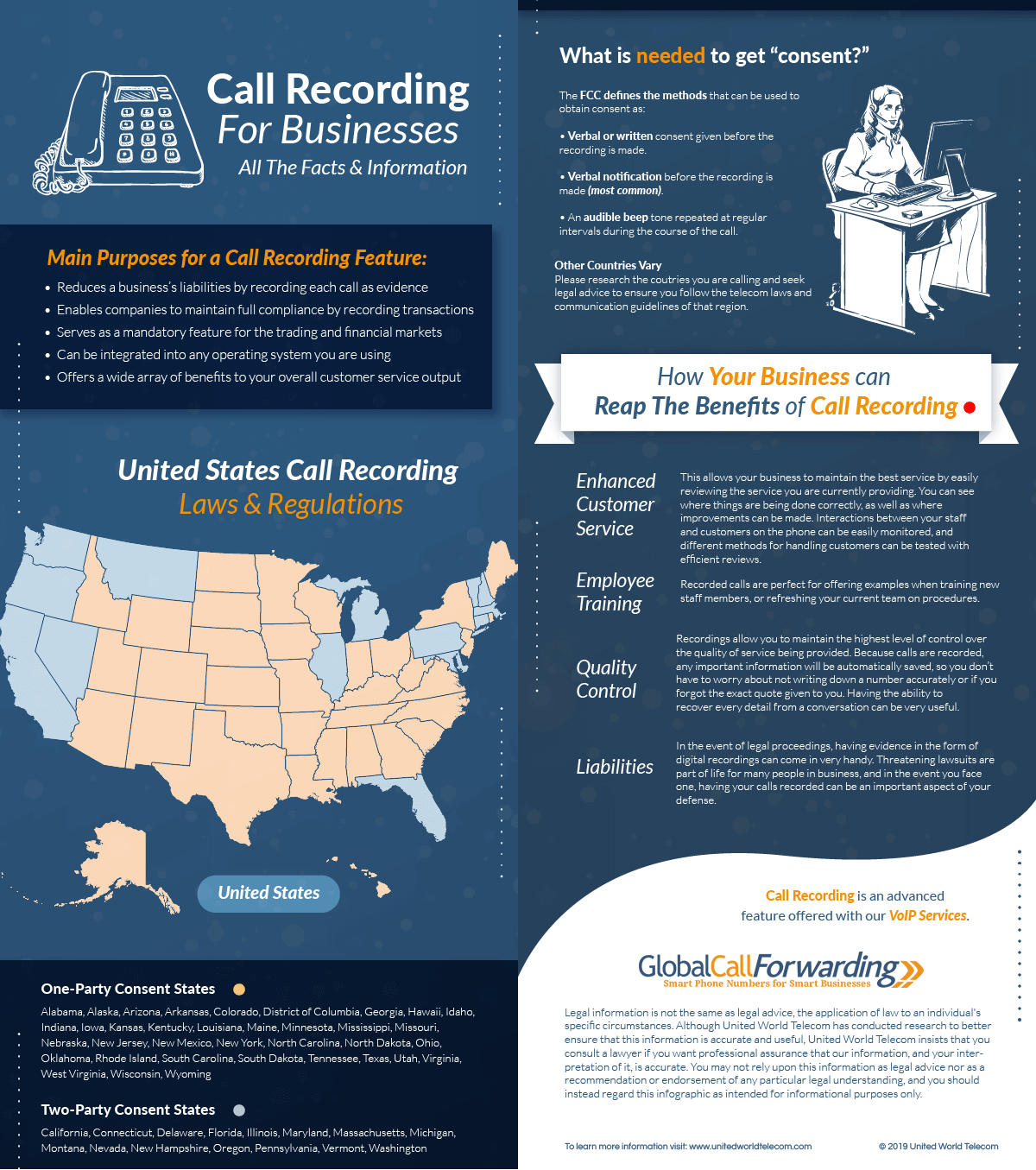
Credits: globalcallforwarding.com
Before you start recording calls, it’s essential to understand the legal implications. In many regions, including various states in the US and countries in Europe, all parties on the call must consent to being recorded. For example, in California, it's a two-party consent state, meaning both parties need to agree to the recording. In contrast, some places, like India, allow recording without consent from the other party. Additionally, when using the built-in recording function, participants are usually notified that the call is being recorded, which helps comply with legal requirements. It's also worth noting that the recording feature may not work for calls made over Wi-Fi. Always check the specific laws in your region to avoid any legal issues.
Always inform the other party that the call is being recorded.
Check local laws regarding consent to record conversations.
In some states, all parties must consent to the call being recorded.
Violating recording laws can lead to legal penalties.
Recording without consent may result in evidence being inadmissible in court.
Be aware of privacy concerns and the expectations of your conversation partners.
Review your organization's policies on call recording if applicable.
Risks of Using Third-Party Call Recording Apps
Using third-party call recording apps may seem like a convenient option, but it comes with several risks. One significant risk is the potential for legal issues. Many of these apps rely on accessibility features to record calls, which might violate consent laws in various jurisdictions. For example, in many places, it's illegal to record a conversation without the consent of all parties involved. If caught, users could face fines or other legal repercussions.
Additionally, third-party apps may not provide reliable recording quality. Due to recent changes in Google's policies, many recording apps struggle to capture both sides of a conversation effectively. This inconsistency can lead to incomplete or unusable recordings, which defeats the purpose of having the app in the first place.
Moreover, there are privacy concerns associated with these apps. Some may request unnecessary permissions, accessing personal data or even other call details without clear justification. This risk can compromise your privacy and security, especially if the app is not from a reputable developer.
Lastly, the stability of third-party apps can be an issue. They may not receive regular updates or support, potentially leading to compatibility problems with newer Android versions or devices. In contrast, built-in features from Samsung are more likely to be stable and secure, as they are developed and maintained by the device manufacturer.
Frequently Asked Questions
1. Can I record a phone call on my Samsung Android phone?
Yes, you can record phone calls on your Samsung Android phone using built-in features or third-party apps.
2. Do I need special permission to record phone calls?
In many places, you need to inform the other person before recording a call. Check local laws to be sure.
3. How do I find the call recording option in my phone?
You can usually find the call recording option in the dialer settings or during a call, look for the record button.
4. What if my phone does not have a built-in call recording feature?
If your phone doesn't have this feature, you can download a third-party app from the Google Play Store.
5. Are recorded calls saved automatically?
Yes, recorded calls are typically saved automatically in a designated folder on your phone, but you may need to check the app's settings.

Viola R. Daigle
I'm Viola R. Daigle, a dedicated Internet Marketer. I work with WarriorPlus as a Vendor and Affiliate, and I’m also an Affiliate on JVZoo and Legendary Marketer. My passion is to provide honest and detailed reviews of Internet Marketing (IM) products and software. I love helping people choose the right tools and strategies to grow their online business with confidence.