
How to Block Pop Ups On My Android Phone?

Pop-up ads can really be an annoyance when you're surfing the web on your Android phone. They disrupt your experience and sometimes lead to malicious sites. Thankfully, you can block these distractions with a few easy steps. Start by checking if Chrome’s pop-up blocker is on; open Chrome, go to settings, and ensure it’s toggled off under site settings.
If that doesn’t work, clearing your browsing data might help as well. You could also switch to Firefox, which has built-in pop-up blocking features. Lastly, consider installing a dedicated pop-up blocker app or using a secure browser for enhanced safety and improved browsing without interruptions!
1. Block Pop-Ups in Chrome
Credits: businessinsider.com
Google Chrome is one of the most widely used browsers on Android. By default, it blocks pop-ups, but you can ensure this feature is enabled: Open Chrome on your Android phone. Tap the three dots in the top-right corner. Select Settings. Go to Site settings. Tap on Pop-ups and redirects. Toggle the setting off to block pop-ups.
If you find that you’re still receiving pop-ups, it may be due to notifications from specific sites. To manage these, go back to Site settings. Tap on Notifications and modify the settings for specific sites.
2. Clear Browsing Data
Clearing your browsing data can be an effective way to get rid of persistent pop-ups that don't seem to go away even after adjusting settings. To do this in Chrome, start by opening the app and tapping on the three dots at the top-right corner. From there, select 'History' and then 'Clear browsing data.' You'll see options to choose a time range; selecting 'All time' is usually best for a thorough clean.
Make sure to check the boxes for 'Cookies, site data' and 'Cached images and files' before tapping 'Clear data.' This process removes any stored data that might be causing unwanted pop-ups, allowing you to start fresh.
3. Use Firefox’s Built-In Ad Blocker
Credits: mozilla.org
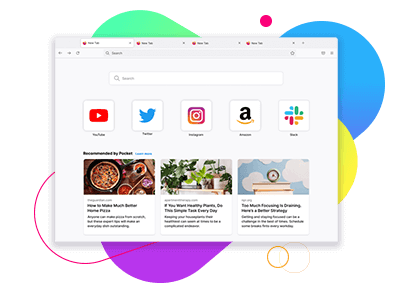
Firefox for Android includes a handy built-in ad blocker that significantly reduces the number of pop-ups you encounter while browsing. To enable this feature, open the Firefox app and tap on the three dots located at the bottom right corner of the screen to access the menu. From there, select 'Settings' and navigate to the 'Privacy' section. Here, you will find the option labeled 'Block pop-up windows.' Ensure that this option is turned on to effectively block unwanted pop-ups.
In addition to blocking pop-ups, you can also manage notifications from Firefox itself. Sometimes, the browser can send notifications that might feel like pop-ups. To adjust these, go to your device's 'Settings,' then tap on 'Notifications.' From there, you can set preferences for Firefox notifications, including blocking them altogether if desired. This combination of features makes Firefox a strong choice for a smoother, ad-free browsing experience on your Android device.
4. Adjust App Notifications
Pop-ups can often be caused by notifications from third-party apps. To manage these notifications, start by opening the Settings app on your Android device. Navigate to Apps and select the specific app that is sending annoying notifications. Once you’re in the app settings, tap on Notifications and toggle off Allow notifications. This will stop the app from sending you any further alerts.
If you want to manage notifications for all apps at once, go to Settings > Notifications. Here, you can see a list of all your installed apps and their notification settings. You can choose to toggle off notifications for any app that is bothering you. This way, you can significantly reduce the number of pop-ups you encounter, leading to a more pleasant user experience.
5. Install a Third-Party Pop-Up Blocker

Credits: chromewebstore.google.com
Installing a dedicated pop-up blocker app can significantly enhance your browsing experience on your Android phone. These apps are designed specifically to prevent pop-ups and intrusive ads from appearing while you surf the web. When choosing a pop-up blocker, look for reputable options like AdGuard, Blockada, or Popup Blocker Pro on the Google Play Store. Make sure to check the reviews and ratings to ensure you're downloading a reliable app. After installation, open the app and follow the setup instructions. Many of these apps offer customizable settings, allowing you to choose what types of ads or pop-ups you want to block. By proactively managing these settings, you can effectively reduce or eliminate unwanted pop-ups.
Research popular third-party pop-up blockers on the Google Play Store
Check user reviews and ratings for reliable options
Look for features like customizable filters and whitelisting
Verify compatibility with your Android version
Ensure regular updates for ongoing protection
Prefer blockers that do not compromise browsing speed
Consider options that offer additional privacy features
6. Use a Secure Browser
Using a secure browser can significantly enhance your protection against pop-ups. Browsers like AVG Secure Browser or Avast Secure Browser come equipped with built-in ad-blocking features. These browsers are designed not only to block pop-ups but also to enhance your privacy while browsing. For example, AVG Secure Browser automatically blocks intrusive ads and protects your personal information from trackers.
To start, simply download the AVG Secure Browser from the Google Play Store, open it, and set it as your default browser. Once set up, you can enjoy a smoother browsing experience without the distraction of unwanted pop-ups, along with added security features that keep your data safe.
7. Identify and Uninstall Problematic Apps
If pop-ups persist on your Android phone, it's crucial to determine if a specific app is causing the issue. Start by entering Safe Mode, which disables third-party apps temporarily. To do this, press and hold the power button, then tap and hold the Power off option until you see the Reboot to Safe Mode prompt. If the pop-ups stop while in Safe Mode, this indicates that a third-party app is likely the source of the problem.
Next, exit Safe Mode and navigate to Settings > Apps. Review the list of applications installed on your phone. Look for any apps that you don't recognize, those that were recently installed, or any that have poor reviews. These could be the culprits behind the unwanted pop-ups.
Once you've identified any suspicious apps, select them and tap Uninstall. For example, if you notice an app that was downloaded around the time the pop-ups started, it's wise to remove it. After uninstalling, restart your phone and check if the pop-ups have ceased. This step can significantly improve your browsing experience.
8. Regularly Scan for Malware
Regularly scanning your Android device for malware is crucial in preventing pop-ups caused by adware or harmful applications. Malware can infiltrate your device, leading to intrusive ads and potentially compromising your personal data. To keep your device secure, install a reputable antivirus app, such as AVG or Avast, from the Google Play Store.
These apps not only help in detecting and removing adware but also offer real-time protection against various threats. Schedule regular scans and ensure the antivirus definitions are up to date.
For instance, if you notice a sudden increase in pop-ups after downloading a new app, running a scan can help identify and remove any malicious software that may have been bundled with it. This proactive approach will significantly enhance your browsing experience and keep your device safe.
Frequently Asked Questions
1. How can I stop annoying pop-ups on my Android phone?
You can block pop-ups by adjusting the settings in your browser. Go to the browser settings and look for the option to block pop-ups. Make sure it is turned on.
2. What if I still see pop-ups even after blocking them?
If you still encounter pop-ups, it could be due to ads from apps. Try checking your app permissions or disabling ads in those apps to reduce them.
3. Is there an app to help block pop-ups on my Android?
Yes, there are several apps in the Google Play Store designed to help block pop-ups and ads. Look for reputable ad-blocker apps and install one that suits your needs.
4. Do I need to update my browser to block pop-ups?
It’s a good idea to keep your browser updated to the latest version. Updates often include improved security features and better pop-up blocking options.
5. Can pop-ups harm my Android phone?
Most pop-ups are just annoying ads, but some can be harmful if they try to trick you into downloading malware. Always be cautious and avoid clicking on suspicious pop-ups.
Conclusion:
Blocking pop-ups on your Android phone is essential for a smoother, safer browsing experience. Whether you’re using Chrome, Firefox, or a secure browser, ensuring that pop-up blockers are enabled in the settings is a great first step. Clearing browsing data and managing app notifications can further reduce unwanted interruptions.
For persistent issues, installing a reliable third-party pop-up blocker app or switching to a secure browser with built-in ad-blocking features can be highly effective. Additionally, identifying and uninstalling problematic apps and running regular malware scans are critical steps to safeguard your device from intrusive ads or harmful software.
By implementing these strategies, you can minimize disruptions, protect your privacy, and enjoy a more seamless online experience on your Android device.

Viola R. Daigle
I'm Viola R. Daigle, a dedicated Internet Marketer. I work with WarriorPlus as a Vendor and Affiliate, and I’m also an Affiliate on JVZoo and Legendary Marketer. My passion is to provide honest and detailed reviews of Internet Marketing (IM) products and software. I love helping people choose the right tools and strategies to grow their online business with confidence.