
How to Connect Android Phone to Wifi?

Connecting your Android phone to Wi-Fi is pretty simple and is a great way to save on mobile data. First, you need to turn on your device's Wi-Fi. You can do this by going into the Settings app and looking for the Wi-Fi toggle under Network settings or by swiping down from the top of your screen.
Once Wi-Fi is activated, a list of available networks will appear—just tap on the one you want to join, enter its password if it’s locked, and then hit Connect. Check for a Wi-Fi icon in your status bar to confirm that you're connected successfully!
1. Turn on Wi-Fi on Your Android Phone
:max_bytes(150000):strip_icc()/androidwifi-bcada8836c314cc5ad090ff827131320.jpg)
Credits: lifewire.com
Before you can connect to a Wi-Fi network, you need to ensure that Wi-Fi is enabled on your device. To do this, start by opening the Settings app on your Android phone. Once in Settings, look for the section labeled Network & internet or Connections, depending on your device model. Here, you will find the Wi-Fi option. Tap on it to access the Wi-Fi settings. You should see a toggle switch for Wi-Fi; make sure it is set to the "On" position.
If you prefer a quicker method, you can also swipe down from the top of your screen to open the Quick Settings menu. From there, simply tap the Wi-Fi icon to turn it on. This step is essential, as having Wi-Fi enabled is the first requirement for connecting to any wireless network.
2. Connect to a Wi-Fi Network
Once Wi-Fi is enabled, you can connect to a network. First, you will see a list of available networks in your Wi-Fi settings. Simply tap on the name of the network you wish to connect to. If the network is secured, which is indicated by a lock icon next to its name, you will be prompted to enter the network password.
Make sure you have the correct password; if you don't, you may need to ask the network owner for it. After entering the password, tap on the 'Connect' or 'Next' button to establish the connection. Once connected, your device will save the network, allowing it to automatically reconnect in the future whenever Wi-Fi is enabled.
You can verify your connection by looking for the Wi-Fi icon in the status bar at the top of your screen—if it's filled, you are successfully connected.
3. Verify Your Wi-Fi Connection
To check if you are successfully connected to the Wi-Fi network, look for the Wi-Fi icon in the status bar at the top of your screen. A filled Wi-Fi icon indicates that your device is connected. If the icon has a small exclamation mark, it means you're connected but may have no internet access.
You can also test your connection by opening a web browser or any app that requires internet access. If the page loads or the app functions properly, your connection is working.
For more detailed information, go back to your Wi-Fi settings and tap on the name of the connected network. Here you can view additional details like the IP address, signal strength, and network speed, helping you gauge the quality of your connection.
4. View Connection Details
:max_bytes(150000):strip_icc()/wifiadvanced-7e788b2ecc0145178b8f9266e7a7d626.jpg)
Credits: lifewire.com
Once connected to a Wi-Fi network, you can easily check various details about your connection. To do this, go back to the Wi-Fi settings where you found the list of available networks. Tap on the name of the network you are connected to. Here, you will see important information such as your device's IP address, the network's security type, and the signal strength.
For example, if you notice that the signal strength is low, it might be an indication that you need to move closer to the router for a better connection. Additionally, you can view how much data your device has used over the Wi-Fi connection, which can be helpful if you're trying to monitor your data consumption.
5. Connecting via Notifications
When you enable Wi-Fi on your Android device, it can notify you about available high-quality public networks nearby. This feature can be quite handy in busy places like cafes or airports where multiple Wi-Fi options might be available. If you receive a notification about a Wi-Fi network, simply tap on it to connect.
You might be prompted to enter a password for secured networks, but for open networks, you can connect instantly with just a tap. To manage your notification preferences, go to your device's settings. You can adjust how and when you receive notifications about available networks, ensuring you stay informed without being overwhelmed by alerts.
6. Troubleshooting Common Connection Issues
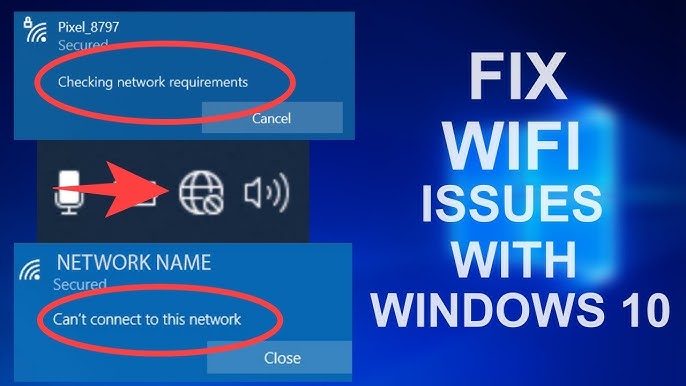
Credits: youtube.com
If you encounter problems connecting your Android phone to Wi-Fi, here are some common issues and their solutions.
First, ensure that you are within range of the Wi-Fi signal. Walls and distance can weaken the connection. If you’re too far away, try moving closer to the router.
Another frequent issue is entering an incorrect password. Double-check the password you entered for the network; it is case-sensitive. If you continue to have trouble, you can forget the network and reconnect by re-entering the password.
Sometimes, your phone may be connected to a different network. To check, go to your Wi-Fi settings and make sure you’re connected to the right one.
If the Wi-Fi connection is still not working, try restarting your phone and the router. This can often resolve temporary glitches.
Additionally, ensure that your phone’s software is up to date. Outdated software may cause connectivity issues. Check for system updates in the Settings > System > System update section.
If all else fails, consider resetting network settings. This will erase all saved Wi-Fi networks and can resolve deeper issues. To do this, go to Settings > System > Reset options > Reset Wi-Fi, mobile & Bluetooth.
Lastly, if you're having issues with public Wi-Fi, some networks may require you to accept terms and conditions before connecting. Open your browser and check if a login page appears.

7. Resetting Network Settings
If you find that your Android phone is still having trouble connecting to Wi-Fi after following the previous steps, resetting your network settings may help. This process will erase all saved Wi-Fi networks and their passwords, so be sure to note any important information before proceeding. To reset your network settings, go to Settings > System > Reset options > Reset Wi-Fi, mobile & Bluetooth. After the reset, you can reconnect to your Wi-Fi network by selecting it from the list of available networks and entering the password. This can help resolve connectivity issues, especially if there are conflicts with previous settings or configurations.
8. Security Considerations When Connecting
When connecting your Android phone to Wi-Fi, security should be a top priority. Always opt for secured networks, which are typically marked with a lock icon. These networks require a password, adding an extra layer of protection against unauthorized access. For instance, connecting to a cafe's Wi-Fi might seem convenient, but if it's unsecured, your personal data could be at risk.
It's also wise to avoid conducting sensitive transactions, like online banking or shopping, while connected to unsecured networks. If you must use public Wi-Fi, consider using a virtual private network (VPN) to encrypt your data and keep your information safe from potential threats. Additionally, regularly check your device for any unusual activity or unauthorized connections to ensure your security remains intact.
Ensure your Wi-Fi network is secured with a strong password.
Keep your Android device's software up to date.
Turn off Wi-Fi when not in use to prevent unauthorized access.
Avoid connecting to public Wi-Fi networks that do not require a password.
Use a VPN (Virtual Private Network) for added security when on public networks.
Regularly check your connected devices for any unknown or suspicious devices.
Disable automatic connection to open networks.
Frequently Asked Questions
1. What settings do I need to check to connect my Android phone to WiFi?
You need to check if your WiFi is turned on in the Settings, and make sure airplane mode is off.
2. How can I find available WiFi networks on my Android phone?
Go to Settings, then tap on WiFi. Your phone will show a list of nearby networks.
3. What should I do if my phone won't connect to a WiFi network?
Try forgetting the network and reconnecting by entering the password again. Check if the password is correct.
4. Can I connect my Android phone to a password-protected WiFi network?
Yes, you can connect by selecting the network and entering the correct password when prompted.
5. Why is my Android phone not showing any WiFi networks?
Make sure your WiFi is enabled and that you are within range of the router. Restart your phone if needed.
Conclusion:
To connect your Android phone to Wi-Fi, first turn on Wi-Fi in the Settings app or through the Quick Settings menu. Then, select the desired Wi-Fi network and enter the password if prompted. Verify the connection by checking for the Wi-Fi icon in the status bar. You can also view connection details, connect via notifications for available networks, and troubleshoot issues by forgetting and reconnecting to the network. Always prefer secured networks for safety.

Viola R. Daigle
I'm Viola R. Daigle, a dedicated Internet Marketer. I work with WarriorPlus as a Vendor and Affiliate, and I’m also an Affiliate on JVZoo and Legendary Marketer. My passion is to provide honest and detailed reviews of Internet Marketing (IM) products and software. I love helping people choose the right tools and strategies to grow their online business with confidence.