
How to Transfer SMS from Android Phone to Computer?

Transferring SMS from an Android phone to a computer is important for keeping texts safe, especially sentimental ones. One effective way is through the MobiKin Assistant for Android; you just need to download and install the software on your PC. Then, connect your phone using a USB cable with USB debugging enabled.
Once connected, select the "SMS" option on the left panel and let it scan your messages. After that, pick which messages you want to transfer and hit "Export." For users who prefer apps, alternatives like SMS Backup & Restore or SMS Backup+ are also viable options for backing up essential conversations easily.
Overview of SMS Transfer Methods
Credits: alamy.com
Transferring SMS from your Android phone to a computer can be accomplished through several methods, each catering to different needs and preferences. The most common way is to use dedicated software like MobiKin Assistant for Android, which offers a straightforward interface for transferring messages directly. Another option is using Android Backup & Restore tools, which allow you to back up all your data, including SMS, and store it safely on your computer.
For those who prefer cloud solutions, Google Drive enables SMS backup, although accessing the messages later might require additional steps. Popular apps like SMS Backup & Restore and SMS Backup+ provide easy ways to back up messages either to your device or directly to your Gmail account. If you only need to transfer specific messages, emailing them to yourself is a quick and effective method.
Additionally, Samsung users can utilize Smart Switch for a seamless backup process. Each of these methods has its pros and cons, and the best choice depends on your specific requirements, such as the volume of messages, ease of use, and desired storage format.
Using MobiKin Assistant for Android
Credits: mobikin.com
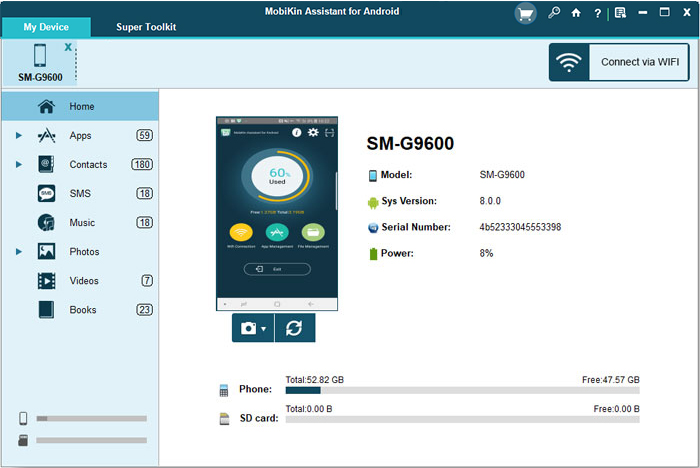
MobiKin Assistant for Android is a powerful tool designed to facilitate the transfer of SMS messages from your Android device to a computer. This software offers a user-friendly interface and supports a wide range of Android devices, making it a popular choice for users looking to back up their messages. To use MobiKin, start by downloading and installing the software on your computer. Once installed, connect your Android phone via USB and ensure that USB debugging is enabled in your phone's settings.
After launching MobiKin Assistant, click on the "SMS" option in the left panel. The program will automatically scan and display all your messages. You can then select specific messages you wish to transfer or choose the "1-click Backup & Restore" feature for a comprehensive backup. MobiKin allows you to export the messages in various formats, providing flexibility based on your needs.

Android Backup & Restore Method
Credits: developer.android.com
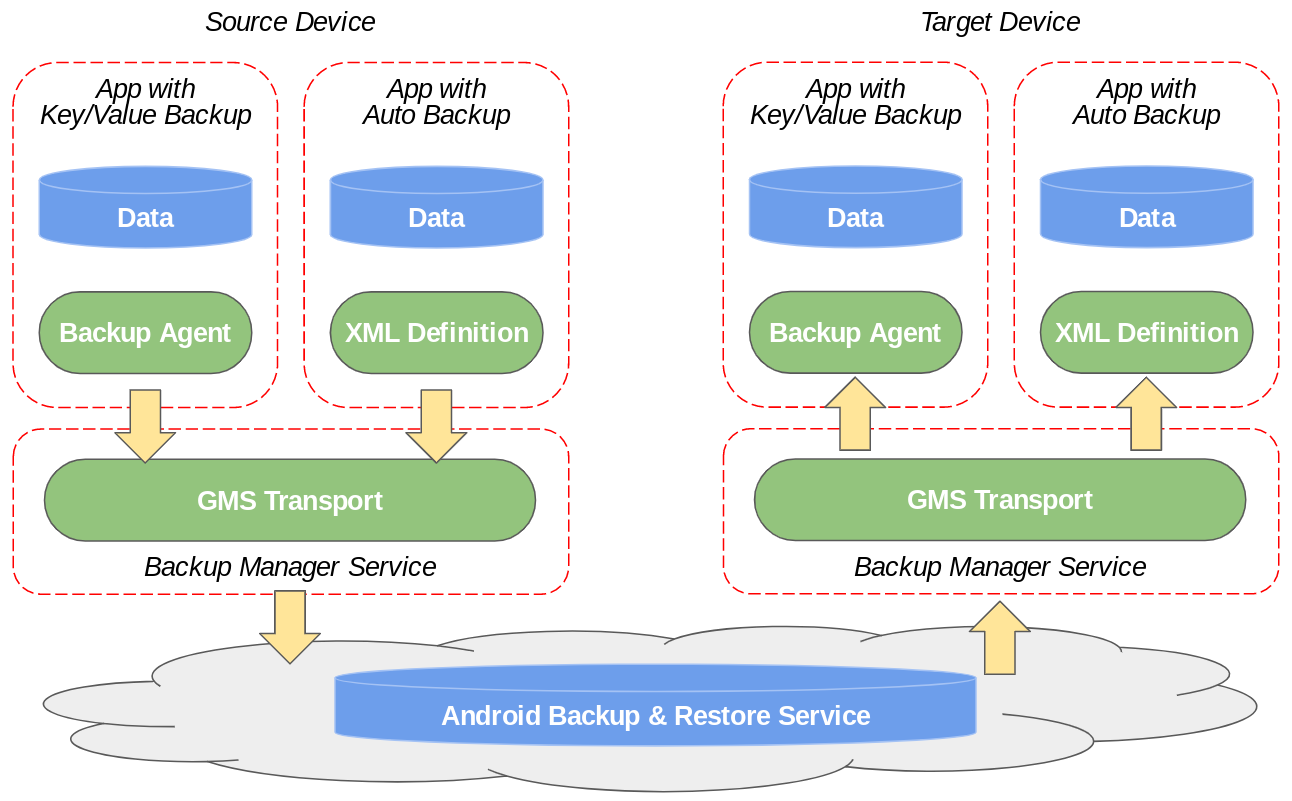
The Android Backup & Restore method is a straightforward way to transfer your SMS messages from your Android device to your computer. This process typically involves using MobiKin Backup Manager, a tool designed to handle various types of data backups efficiently. To start, ensure that you have MobiKin Backup Manager installed on your computer. Once installed, connect your Android phone to your computer using a USB cable or via Wi-Fi.
After establishing the connection, launch the Backup Manager and click on the "Backup" option. Here, you will see a list of data types; select "Messages" to include your text messages in the backup. You can then specify a location on your computer where you want to save the backup files.
Finally, click on the "Back Up" button, and the software will create a complete backup of your SMS messages, allowing you to access them later from your computer. This method is particularly useful for those who want a comprehensive backup of their SMS without the hassle of manually selecting individual messages.
Connect your Android phone to your computer.
Open the backup software on your computer.
Select SMS backup option.
Choose the location where you want to save the backup.
Start the backup process.
Wait for the process to complete.
Verify the backup to ensure messages are saved correctly.
Backing Up SMS with Google Drive
Backing up your SMS using Google Drive is a simple method that leverages the power of cloud storage. To get started, navigate to your Android device's settings. From there, go to 'Google' and then select 'Backup'. Ensure that the option for SMS backup is turned on. This will allow your text messages to be included in the data that is backed up to your Google Drive account.
Once the backup is completed, you can access this data from your computer. Open Google Drive in your web browser and sign in with the same Google account linked to your Android device. Look for the backup file, which may not be directly visible among your regular files. To download your SMS for viewing or safekeeping, you might need to use specific software or tools that can interpret the backup data, as the SMS is stored in a format that isn't directly readable.
This method is particularly useful for users who frequently switch devices or want an automated backup solution. However, keep in mind that while Google Drive provides a safety net for your messages, accessing them in a readable format on your computer requires additional steps.
SMS Backup & Restore App Guide
SMS Backup & Restore is a widely used app that simplifies the process of backing up your SMS messages. It's user-friendly and allows you to store your messages either locally on your device or on the cloud. To get started, you need to download the SMS Backup & Restore app from the Google Play Store.
Once installed, you can open the app and tap 'Get Started'. You'll see options to back up your messages; just select 'Messages' to initiate the backup process. You can choose to save the backup on your device or directly to a cloud service like Google Drive or Dropbox for added security.
After you've created the backup, you can easily transfer it to your computer. Connect your Android phone to your PC using a USB cable, and navigate to the folder where the backup is saved. This is usually located in the SMS Backup & Restore folder.
Look for the .xml file, which contains your messages, and copy it to your computer for safekeeping. This method ensures that you have a reliable backup of your important conversations, and the app also allows you to restore these messages easily if needed.
Utilizing SMS Backup+ for Gmail
SMS Backup+ is a convenient app that helps you back up your text messages directly to your Gmail account, making it easy to access them on your computer. To get started, first, download SMS Backup+ from the Google Play Store. Once installed, open the app and log into your Gmail account. Make sure that IMAP is enabled in your Gmail settings, as this allows the app to sync messages effectively.
After logging in, tap the 'Backup' option. The app will begin uploading your SMS messages to your Gmail account, which can take some time depending on the number of messages you have. Once completed, you can access your backed-up messages by logging into Gmail on your computer. They will appear in a dedicated label called 'SMS.' This method is especially useful because you can search your messages directly in Gmail and keep them organized without occupying space on your device.
Emailing Messages for Quick Transfer
Emailing specific SMS messages is a simple and efficient way to transfer them from your Android phone to your computer. This method is particularly useful when you only need to save a few important conversations rather than backing up all your messages. To do this, start by opening your Messages app and selecting the SMS that you want to transfer.
Once you've chosen the message, tap the menu icon (usually represented by three dots) and select the 'Share' option, then choose 'Email' from the list of sharing options. Enter your email address and send the message.
After sending, you can access your email account on your computer, locate the email containing the message, and download it if needed. This method is swift and doesn't require any additional software, making it ideal for quick transfers.
Samsung Smart Switch for Samsung Users
Samsung Smart Switch is a powerful tool specifically designed for Samsung users to transfer data, including SMS messages, between devices and to a computer. To get started, download and install Smart Switch on your computer. Next, connect your Samsung phone to your computer using a USB cable. Once connected, launch the Smart Switch application.
You'll see options for various types of data you can back up. Ensure that 'Messages' is checked, then click on the 'Backup' button. The software will initiate the backup process, transferring your SMS data to your computer. This method not only secures your messages but also allows you to restore them easily if needed. It's user-friendly and efficient, making it an ideal choice for Samsung device owners.
Common Questions About SMS Transfer
Transferring SMS can raise several questions, especially for those unfamiliar with the process. One common query is about the security of messages during transfer. Users often wonder if their SMS will be exposed to risks. Using reputable software like MobiKin Assistant for Android ensures that your data remains secure and private.
Another frequent concern is about compatibility. People ask if their specific Android model is supported. Most SMS transfer tools, including MobiKin, support a wide range of devices, often over 8000 models, making them versatile for different users.
Some users might also question the file formats available after transfer. For instance, apps like SMS Backup & Restore export messages in XML format, which can be accessed using text editors. However, users should be cautious not to modify these files to avoid corruption.
Lastly, individuals sometimes want to know if they can recover deleted messages. While many transfer methods create backups, they do not retrieve already deleted SMS. It's essential to back up messages regularly to avoid losing important conversations.
Frequently Asked Questions
1. What apps can I use to transfer SMS from my Android to my computer?
You can use apps like SMS Backup & Restore, iSMS2droid, or even Google Drive to backup your messages and transfer them to your computer.
2. Do I need a cable to transfer SMS from my phone to my computer?
Not necessarily. While using a USB cable is one way, many apps allow wireless transfer over Wi-Fi or Bluetooth.
3. Can I transfer all my SMS at once?
Yes, most SMS transfer apps allow you to back up and transfer all your messages in one go, instead of doing it one by one.
4. Will transferring SMS delete them from my phone?
No, transferring SMS to your computer using backup apps doesn't delete them from your phone unless you choose to delete them.
5. Is it possible to view transferred SMS on my computer?
Yes, once transferred, you can view your SMS on your computer using specific applications or by opening the backed-up files.

Viola R. Daigle
I'm Viola R. Daigle, a dedicated Internet Marketer. I work with WarriorPlus as a Vendor and Affiliate, and I’m also an Affiliate on JVZoo and Legendary Marketer. My passion is to provide honest and detailed reviews of Internet Marketing (IM) products and software. I love helping people choose the right tools and strategies to grow their online business with confidence.