
How to Put Music on Android Phone for Free?

Listening to music on your Android phone is a great way to chill and enjoy your favorite tracks. If you want to add music for free, there are multiple methods you can try. First, consider using music streaming apps like Spotify or YouTube Music; just download them from the Google Play Store and create an account. You can then search and stream songs at no charge, though ads might interrupt occasionally. Alternatively, if you have music files on your computer, connect your phone via USB and transfer them directly to the device’s music folder. There’s also the option of downloading songs from legal free music websites like Jamendo before moving them onto your phone. Enjoy listening!
1. Use Music Streaming Apps
Credits: stock.adobe.com
Music streaming apps are a popular and convenient way to listen to your favorite songs on your Android phone without any cost. Many of these apps offer a vast library of music that you can access for free, although they may include ads. For instance, Spotify allows you to create playlists and follow artists, while YouTube Music lets you discover music videos alongside audio tracks. SoundCloud is another great platform where you can find tracks from independent artists, often not available on mainstream services. By simply downloading and installing these apps from the Google Play Store, you can start enjoying a diverse range of music instantly. Just remember, while streaming is free, downloading songs for offline use usually requires a subscription.
2. Download and Install Spotify
Credits: geeksforgeeks.org
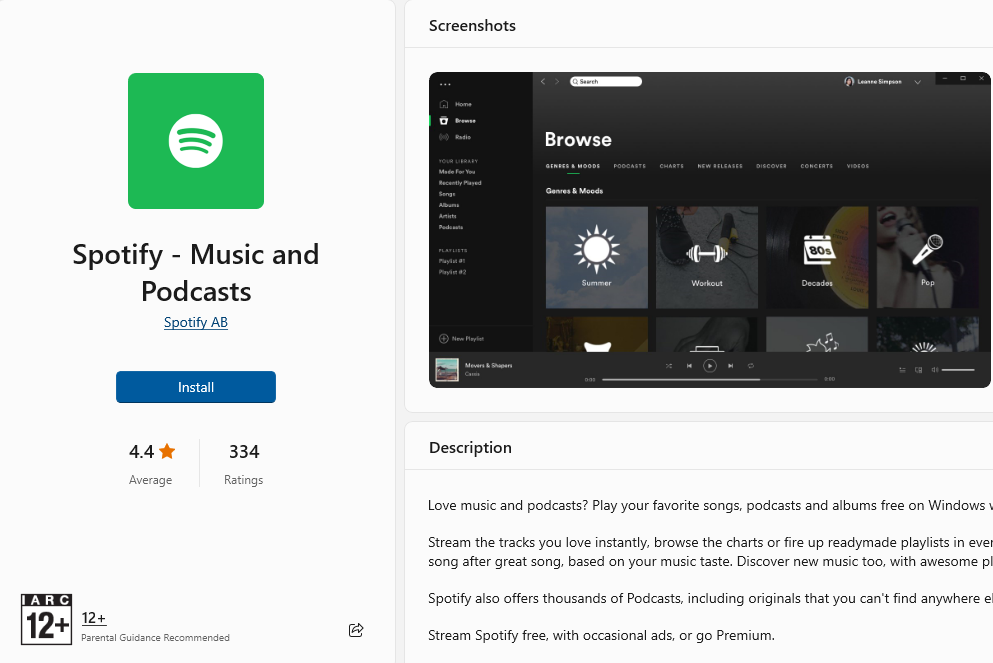
To get started with Spotify, open the Google Play Store on your Android device. In the search bar, type "Spotify" and tap on the app when it appears in the search results. Once you find it, click the "Install" button to download the app. After the installation is complete, launch Spotify by tapping on its icon. You will be prompted to create an account if you don’t already have one. You can sign up using your email address, or you can opt to register through your Google or Facebook account for quicker access.
Once you’re signed in, you can begin exploring the vast library of music available. Use the search function to find your favorite songs, albums, or artists. While using Spotify for free, you can enjoy music, but keep in mind that it will play ads between tracks. You can create playlists and save your favorite songs for easy access, making it a great way to enjoy music on the go.
3. Sign Up for Amazon Music
:max_bytes(150000):strip_icc()/amazon-music-sign-in-5bd33a4f46e0fb00513c2215.png)
Credits: lifewire.com
To get started with Amazon Music on your Android phone, you first need to download the app from the Google Play Store. Once installed, open the app and sign in using your existing Amazon account. If you don’t have an account, you can easily create one for free. After logging in, you can explore a vast library of music. Search for your favorite songs or artists using the search bar. Amazon Music offers a free tier that allows you to stream music, although some features may be limited compared to the paid version. You can listen to curated playlists and discover new music based on your preferences, making it a great way to enjoy tunes without any cost.
4. Access YouTube Music
YouTube Music is a fantastic platform for accessing a vast library of songs, playlists, and music videos. To start, download the YouTube Music app from the Google Play Store and open it. You'll need to sign in with your Google account to unlock the full features of the app. Once you're in, you can search for your favorite songs or explore curated playlists tailored to your music taste. The app allows you to listen to music for free, but keep in mind that there will be ads interrupting your listening experience. If you want to enjoy music offline, consider using the app's download feature, which is available in the premium version. However, even as a free user, you can discover new artists and tracks by browsing through the app's recommendations.
5. Explore SoundCloud
SoundCloud is a fantastic platform for discovering and listening to a wide variety of music, especially from independent artists and emerging musicians. To get started, download the SoundCloud app from the Google Play Store. Once installed, you’ll need to create an account, which you can do using your email or social media profiles. After signing up, you can explore a vast library of tracks by using the search feature. You can find everything from popular songs to unique remixes and original compositions. A great feature of SoundCloud is its community aspect; you can follow artists, like tracks, and even comment on songs. This platform is perfect for those looking to discover new music that isn't available on mainstream services. Plus, streaming on SoundCloud is completely free, making it an excellent choice to enjoy music without spending a dime.
6. Transfer Music from Your Computer
If you have music files on your computer that you'd like to transfer to your Android device, follow these steps: First, connect your Android phone to your computer using a USB cable. Make sure to select the "Transfer Files" option on your phone to allow access. Next, navigate to the music files you want to transfer on your computer. Open the music folder on your Android device, which you can usually find under "This PC" or "My Computer". Finally, copy the desired music files from your computer and paste them into the music folder on your Android device. Once the transfer is complete, you can unplug your device and enjoy your music on the go.
7. Connect Your Phone to Your Computer
To transfer music files from your computer to your Android phone, start by connecting your phone using a USB cable. Once connected, unlock your phone and you should see a notification indicating that the device is charging. Tap on this notification and select the 'Transfer Files' option, which allows your computer to access your phone's storage. On your computer, navigate to the folder where your music files are stored. Open the music folder on your Android device, which is usually labeled as 'Music' or something similar. Now, simply drag and drop or copy and paste the music files from your computer into this folder. After the transfer is complete, safely eject your phone from your computer. You can now enjoy your newly added music on your Android device.
8. Copy and Paste Music Files
Copying and pasting music files from your computer to your Android phone is a straightforward process that many users find convenient. First, connect your Android phone to your computer using a USB cable. Make sure your phone is unlocked and that you select the 'Transfer Files' option when prompted. This allows your computer to access your phone's storage.
Next, on your computer, navigate to the folder where your music files are stored. You can select multiple files by holding down the 'Ctrl' key while clicking on each file. Once you've selected the songs you want to transfer, right-click and choose 'Copy.'
Now, open the music folder on your Android device that appears on your computer. Right-click in the folder and select 'Paste.' This will transfer your music files onto your Android phone. Wait for the transfer to complete before disconnecting your phone. Now, you can enjoy your favorite songs directly from your device!
9. Use Free Music Download Websites
There are many free music download websites that let you legally download songs without any cost. Popular platforms like Jamendo and Free Music Archive offer a wide range of music genres from various artists. To get started, simply visit one of these sites, browse through their collection, and select the songs you want. Once you find a track, click on the download button to save it to your computer. After downloading, connect your Android phone to your computer using a USB cable, and transfer the downloaded music files into the music folder on your device. This method allows you to enjoy your favorite tracks offline and without any ads.
10. Find Free Music Download Sites
If you're looking for free music download sites, there are several options available that offer a variety of genres and artists. Websites like Jamendo, Free Music Archive, and SoundCloud provide a platform for independent musicians to share their work legally. On Jamendo, for example, you can browse through thousands of tracks across different genres, from pop to classical, and download them for personal use. The Free Music Archive is another great resource that curates a collection of music that can be freely downloaded, often featuring emerging artists. SoundCloud also allows users to download tracks directly from artists who have enabled this feature. Just make sure to check the licensing terms for each track to ensure you're downloading music legally.
11. Download Music to Your Computer
To get music onto your Android phone for free, you might want to start by downloading music directly to your computer. Begin by visiting websites that offer free music downloads legally, such as Jamendo or Free Music Archive. Once you find the songs or albums you want, simply click the download button to save them to your computer. After the download is complete, connect your Android phone to your computer using a USB cable and select the 'Transfer Files' option on your phone. Navigate to the music folder on both your computer and your Android device, then copy the downloaded music files from your computer and paste them into the music folder on your phone. This method is straightforward and allows you to have your favorite tracks available offline on your device.
12. Tips for Using Music Apps
To enhance your music listening experience on Android, consider a few handy tips. First, check if your preferred music app offers offline listening options. This feature lets you download songs to your device, allowing you to enjoy your music even without an internet connection, though it may require a paid subscription. Additionally, always connect to Wi-Fi when downloading music or streaming to avoid hefty data charges. Explore curated playlists provided by the app; these can help you discover new artists and genres that you might love. Lastly, keep your app updated to access the latest features and improvements, ensuring a smooth listening experience.
Ensure you have a stable internet connection for streaming.
Explore app settings to customize your listening experience.
Create playlists to organize your favorite tracks.
Use offline listening features to save data.
Take advantage of free trials for premium features.
Follow your favorite artists for updates and new releases.
Regularly check for updates to enhance app performance.
13. Enjoy Music Offline on Your Phone
To enjoy music offline on your Android phone, you can download songs directly from streaming apps that offer offline listening. For instance, Spotify allows premium users to download tracks for offline play. Once downloaded, you can access your favorite songs without needing an internet connection, making it perfect for road trips or areas with poor reception. Another option is using free music download websites where you can legally download tracks to your computer and then transfer them to your phone. After transferring, you can use a music player app to enjoy your music anytime, anywhere, without relying on data or Wi-Fi.
14. Use Wi-Fi for Streaming and Downloading
Using Wi-Fi to stream or download music on your Android phone is a smart way to save on data charges. When connected to a Wi-Fi network, you can access streaming services like Spotify, YouTube Music, or SoundCloud without worrying about using up your mobile data. This is particularly useful if you plan to listen to music for an extended period or want to download songs for offline listening.
For instance, if you want to create a playlist for a road trip, connect to Wi-Fi and download your favorite tracks while at home or in a café. This way, you can enjoy your music anywhere without incurring extra costs. Additionally, many apps allow you to set preferences to only download music over Wi-Fi, ensuring that you won't accidentally use your mobile data. Always check your app settings for this option to make the most of your Wi-Fi connection.
Frequently Asked Questions
1. How can I transfer music from my computer to my Android phone for free?
You can use a USB cable to connect your phone to your computer, then drag and drop music files from your computer to the music folder on your phone.
2. Are there any apps that let me download music to my Android phone for free?
Yes, there are several apps like SoundCloud and Jamendo where you can legally download music for free.
3. Can I use cloud services to get music onto my Android phone without paying?
Absolutely! You can upload your music to cloud services like Google Drive or Dropbox and then access and download them from your Android phone.
4. What if I want to download music directly from the internet to my Android phone?
You can use free music downloader apps or websites that offer free music downloads, just make sure they are legal and safe to use.
5. Is it possible to transfer music from one Android phone to another for free?
Yes, you can use apps like SHAREit or Bluetooth to transfer music files between Android phones without any cost.

Viola R. Daigle
I'm Viola R. Daigle, a dedicated Internet Marketer. I work with WarriorPlus as a Vendor and Affiliate, and I’m also an Affiliate on JVZoo and Legendary Marketer. My passion is to provide honest and detailed reviews of Internet Marketing (IM) products and software. I love helping people choose the right tools and strategies to grow their online business with confidence.